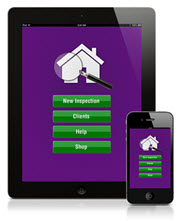
Help for InspectaHome Mobile App
Step-By-Step Instructions for InspectaHome Android app
Step 1: Press on New Inspection button
- Press menu button.
- Pop-up appears with New Client, Profiles, and Help.
- Select profiles.
Step 2: Enter profile information
- Enter Profile name, Rep name, Rep Email, and Cleaning Technicians name.
- Press on back button - Now it is saved and you will not need to re-enter the profile information again unless it changes for that account.
- Press back button.
- Press menu button and select new client.
Step 3: Enter the company account information, rep. information and cleaning technician(s) names.
- Enter home owner's name, street address, city, state, zip, email, phone.
- You will see that the company rep name and company rep email has auto-filled from profile.
- Cleaning technician(s) name has also auto-filled.
- Press menu button
- Press main menu
- Press new inspection button
Step 4: Enter the Inspection number or name and Inspection date.
- Enter inspection number or name.
- Enter inspection date. Client name auto fills.
- Press menu button
- Press add room
Step 5: Select room type
- You can select room type from drop down menu.
- You can enter notes about the room.
- Long press to take photo of the room or surface. Press take photo, select image or delete. After taking photo press cancel or save.
- You can press menu button to add room type. Pop-up box appears-type in room type and select OK. It now is saved in room menu.
- To edit, duplicate or delete room type press back button to go to room page, then long press on room type. Make selection, press OK.
- Select room type.
Step 6: Press on Inspection items button.
- This will bring up a list of tasks for that room type; the tasks can be graded Poor, Fair, Good or Excellent. Each selection has a different color. Poor-Red, Fair-yellow, Good-orange and Excellent-green.
- Tasks in yellow text can be scored by ATP testing.
- Inspection items can be added, edited, duplicated, deleted or text color changed to yellow for ATP testing when you long press on the inspection item.
- Once selected tasks have been graded press room list button.
- Continue to select or add rooms until complete.
Step 7: Return to Rooms page, press Score Card button on bottom
- This takes you to the score card, which lists all of the rooms you have selected and graded.
- There is a total amount of each score given in a room type; totals are listed on the bottom of score card.
- An overall rating is given. The overall rating determines if the work inspected is unacceptable or exceeds standards.
- You can write comments in commons box.
- Press signatures button-The representative and employee can sign their name. To clear signature press clear signature button.
Step 8: Press menu button
- Select what you would like to do from the drop down menu.
- You can email a copy of the inspection to the client and to the company rep.
To email a copy press on email client or email rep.
Select the method of sending email.
An email appears. You can edit the email or press the send button. - You can export to a PDF document.
To export to PDF, press on export PDF.
Select method to complete action (you may have to install an app that can read PDF documents).
You now can review the inspection notes in a document. - Press back button, press menu button, press main menu.
Step 9: To add additional inspections such as carpet cleaning, window washing, etc.
- Press on Client list button.
- Press on Inspections.
- Press menu button, select new inspection
- Enter inspection name and inspection date.
- Press on menu button
- Press on add room.
- Press menu button and select add room type.
- Pop-up box appears - enter inspection name, press OK. This inspection is now added to room type drop down menu.
- Press on inspection items.
- Press on menu button-select add inspection item.
- Pop-up box appears-enter inspection item-select ATP testable if it applies or press OK.
- Continue to enter all inspection items you want listed.
- Follow steps 6 thru 9.
To watch a video tutorial, visit this page.
Questions? Contact us here.
Step-By-Step Instructions for InspectaHome iOS (iPad and iPhone) app
Step 1: Press on New Inspection button
- Press green menu button.
- Pop-up appears with select of Home, Add Client, Profiles, and Help.
- Select profiles.
Step 2: Enter profile information
- Enter Profile Name, Rep name, Rep Email, and Cleaning Technicians name.
- Press on Save as Default - Now it is saved and you will not need to re-enter the profile information again unless it changes for that account.
- Press back button.
- Press menu button and select add client.
Step 3: Enter the client's account information, Janitorial rep. information and cleaning technician(s) names.
- Enter home owner's name, email, street address, city, state, zip.
- You will see that the company rep name and email has auto-filled from profile.
- Cleaning technician(s) name has also auto-filled.
- Press save button
- Press back button
- Press new inspection button
Step 4: Enter the Inspection number or name and Inspection date.
- Enter inspection number or name.
- Enter inspection date.
- Press add new room
Step 5: Select room type
- You can select room type from rotating menu.
- You can enter any notes about the room.
- Press take photo button to take a photo of the room or surface. Press use photo or retake.
- You can press on menu button to add room type, edit room type or delete type.
Pop-up box appears, add or edit room name, press OK, it is added to rotating menu.
To delete room type, select room type, press on menu button, select delete type.
Step 6: Press on green Inspection items button.
- This will bring up a list of tasks for that room type; the tasks can be graded Poor, Fair, Good or Excellent. Each selection has a different color. Poor-Red, Fair-yellow, Good-orange and Excellent-green.
- Tasks in yellow text can be scored by ATP testing.
- Inspection items can be added, edited, duplicated, deleted or text color changed to yellow for ATP testing when you long press on the inspection item.
- Once selected tasks have been graded press green back button.
- A pop-up will appear Save Room. Select no or yes. You then will go back to room page.
- Continue to select or add rooms until complete.
Step 7: Press Calculate button on bottom
- This takes you to the score card, which lists all of the rooms you have selected and graded.
- There is a total number of each score given in a room type; totals are listed on the bottom of score card.
- An overall rating is given. The overall rating determines if the work inspected is unacceptable or exceeds standards.
- The employee and the company rep can sign their signature at the bottom of the score card page.
Step 8: Press menu button
- Select what you would like to do from the drop down menu.
- You can email a copy of the inspection to the client and to the company rep.
To email a copy press on email client or email rep.
An email appears. You can edit the email or press the send button. - You can create a PDF document.
To create a PDF, press on create PDF (you may have to install an app that can read PDF documents). You now can review the inspection notes in a document. - You can select profiles to review, edit, duplicate or delete profiles stored.
Step 9: To add additional inspections such as carpet cleaning, window washing, etc.
- Press on New Inspection button.
- Press on New Inspection.
- Enter inspection name and inspection date.
- Press on add new room.
- Press menu button and select add type.
- Pop-up box appears - enter inspection name, press OK. This inspection is now added to room type rotating menu.
- Press on inspection items.
- Press on menu button-select add item.
- Pop-up box appears - enter inspection item - select ATP (for ATP testing) or NO
- Continue to enter all inspection items you want listed.
- Follow steps 6 thru 9.
To watch a video tutorial, visit this page.
Questions? Contact us here.